

How to set up a Google Business Profile for your small business
If you’re a small business owner looking to attract more local customers, one of the first things you should do is create a Google Business Profile. This is a free tool that’s easy to set up and can make a huge difference to how easily people will find your business online.
For local cafes, tradespeople, retailers, consultants and more, a Google Business Profile can help your business to appear in Google Search and Google Maps when customers are looking for products or services like yours online.
In this blog, we’ll explain exactly how to set up your profile, the information you should include and how to optimise it for local SEO.
What is a Google Business Profile?
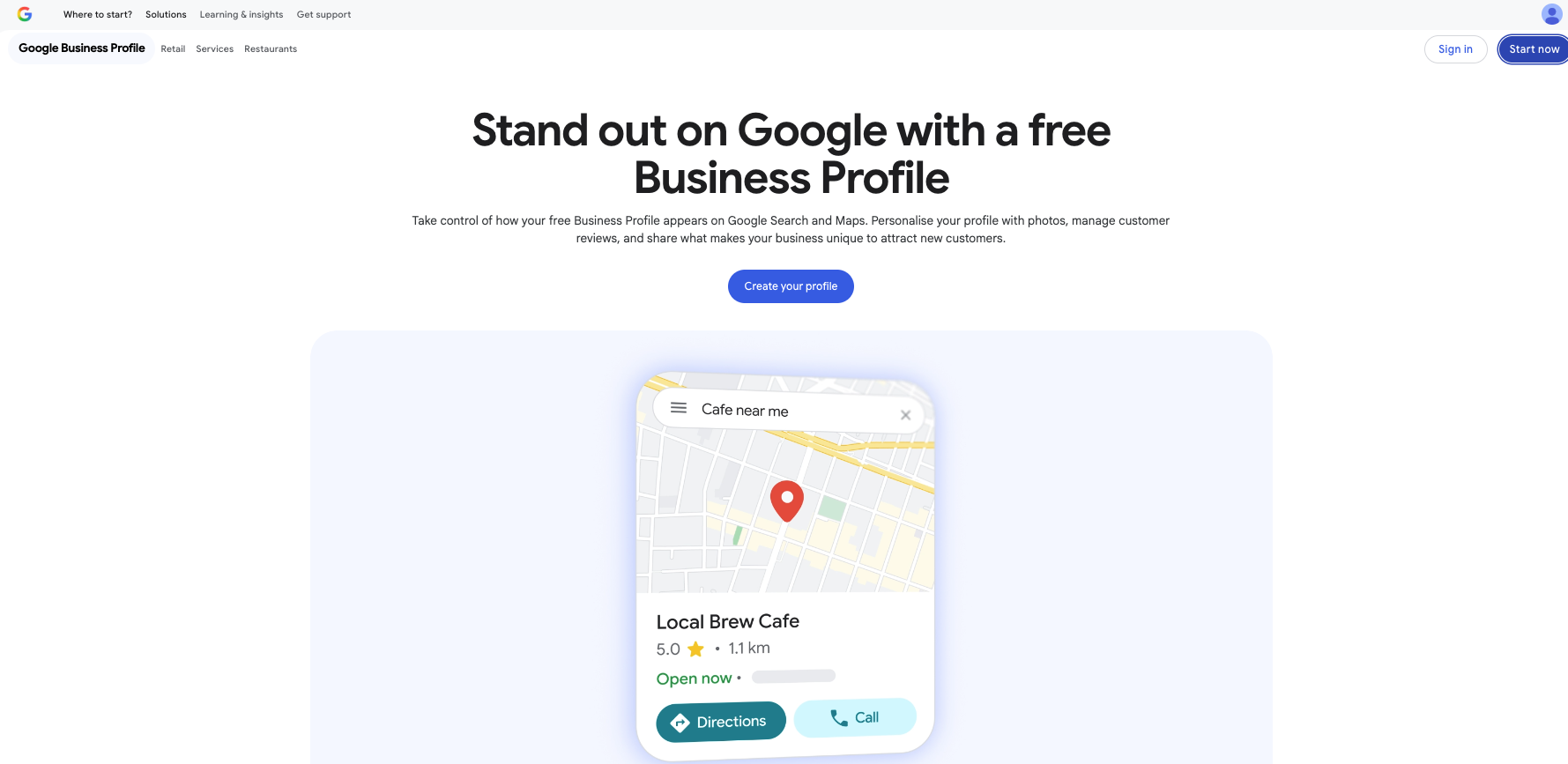
A Google Business Profile (formerly known as Google My Business) is a free tool that allows you to manage how your business appears on Google’s products, including Search and Maps.
So, when someone searches for your business or the products or service you offer, your profile can display:
Your business name
Your address or service area
Your opening hours
Your phone number
A link to your website
Customer reviews
Photos
Products and services
Directions to your premises
For many businesses, it’s often the first thing a potential customer will see before they even visit your website.
Why every small business should have one
Completing your Google Business Profile and keeping it updated can help local customers to find you more easily and provides more confidence in your business.
The benefits of setting a profile up include:
Increased visibility in local Google searches
A better chance of appearing in Google Maps when someone searches locally
More phone calls and website visits
An opportunity to showcase your products and services
A platform for collecting customer reviews
Improved trust through photos, ratings and business information
Even if your website is fully optimised, a Google Business Profile will play an important role in your local SEO strategy. Think of it as a digital shop window. Many customers will decide whether to contact you or visit you before they’ve even clicked through to your website.
Step 1: Create your Google Business Profile
Visit the Google Business Profile and sign in with your Google account. Or create one if you don’t already have one.
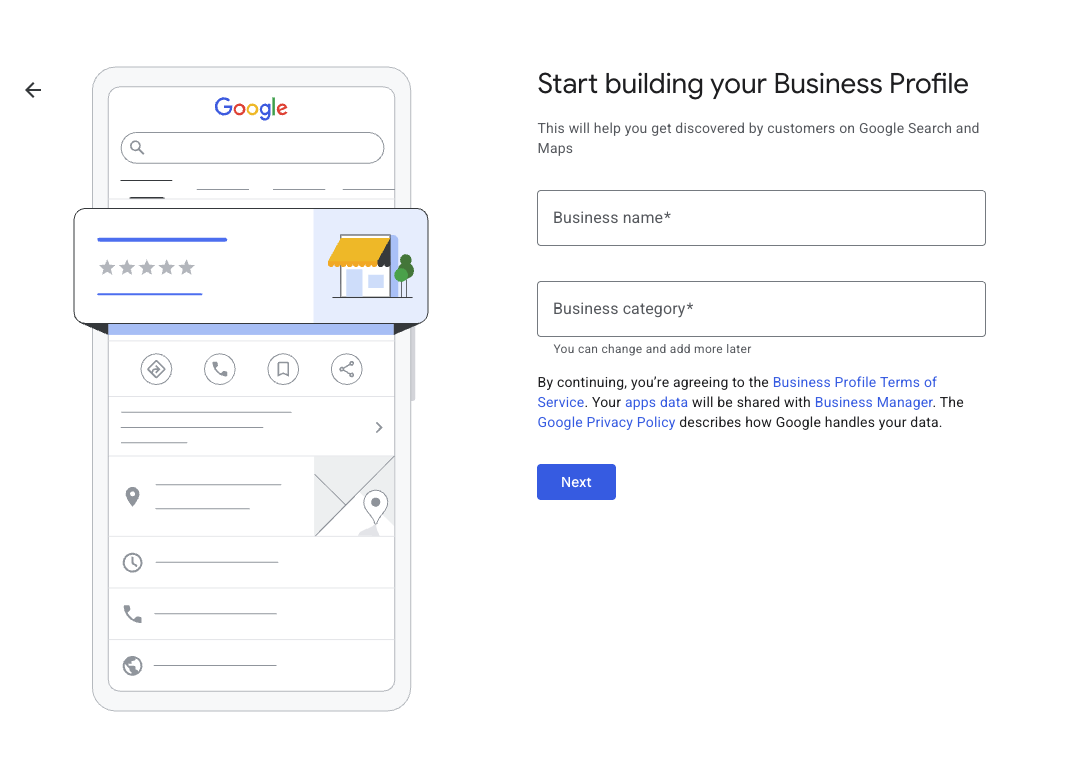
Select Manage now and begin entering your business details. Google will ask for your business name so make sure you use the name your customers know and recognise your business for. Avoid adding unnecessary keywords or locations to improve rankings as this could have a negative effect on your profile.
Next, you’ll need to choose your primary business category. Choose the option that most closely describes your main product or service. You can add additional categories later if required.
Step 2: Add your business location
Google will ask you whether your customers visit a physical business location. If you have a shop, office or showroom, you will want to display your address.
If you travel to your customers instead, for example if you’re a tradesperson or consultant, you can choose to hide your address and define the areas you serve instead.
Adding accurate service areas helps Google understand where your business operates without displaying your home address if you work remotely.
Step 3: Verify your business
Verification confirms to Google that your business is genuine and located at the address you’re claiming. Depending on your business, you may be asked to verify your profile using:
Video verification
Email
Phone
Postcard
Follow the instructions carefully and complete the verification as soon as you can. Some features will not be available until you’ve verified your business. Verification times vary but many businesses are approved within a few days.
If Google requests a video verification, make sure you have access to your premises, business signage or equipment before you begin.
Step 4: Add your services and products
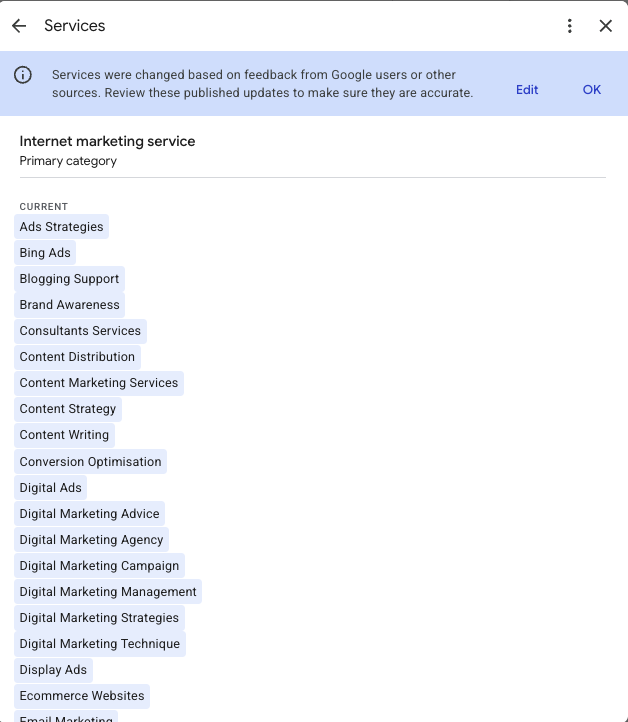
Once your profile has been verified, you’ll be able to complete the sections to optimise it. Adding your services and products gives customers a much clearer understanding of what you offer.
For example, a marketing consultant might add services such as:
SEO
Google ads management
Social media marketing
Email marketing
Marketing strategy workshops
If you sell physical products, add your most popular items with descriptions, prices and images.
Service based businesses can use the products section to showcase packaged or fixed-price services.
Step 5: Upload high-quality images
Photos of your premises, products or team can help customers to understand who you are and what you do before they contact you. Google recommends adding genuine images that represent your business.
You could upload the following:
Company logo
Cover photo
Team photos
Office or shop
Products
Completed projects
Company vehicles
Behind the scenes images
Try not to rely too much on stock imagery. Authentic images build trust and often encourage more people to engage with your business.
Try to upload imagery regularly to keep your profile updated.

Step 6: Start collecting reviews
Customer reviews are one of the most valuable parts of your profile. Positive, genuine reviews help build trust with potential customers and demonstrate that your business provides a good experience.
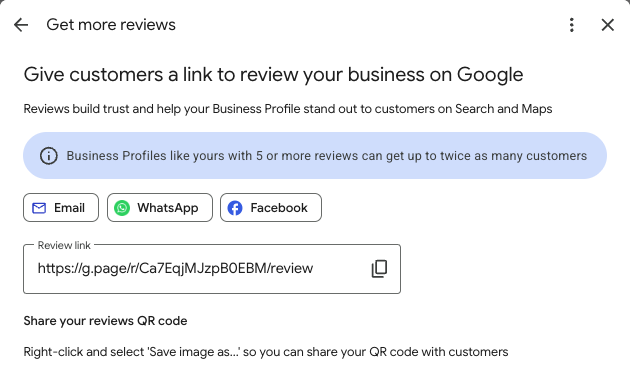
Once you’ve completed a job or delivered a product, ask your customers to leave you a review. You can generate a direct review link within your Google Business Profile dashboard and include it in places such as your invoices, email signatures and follow up emails.
Remember to reply to every review, whether positive or negative. Professional responses show that you value customer feedback. Make sure you ask for reviews soon after completing the work or selling the product. You’re more likely to get a response while the experience is still fresh in the customer’s mind.
Step 7: Keep your profile up to date
Your Google Business Profile shouldn’t be something you create once and forget. Make sure you review it regularly to ensure the information stays accurate and that you continue to optimise it.
Every month, check:
Opening hours
Contact details
Services
Photos
Business description
Reviews
Products
Google also allows you to publish updates, offers and announcements, giving customers another reason to engage with your business. An active profile demonstrates that your business is current and well managed.
Frequently asked questions
Is a Google Business Profile free?
Yes, it’s completely free to create and manage.
Can I create a profile even if I don’t have a physical shop?
Yes. If you’re a service-based business serving a particular area, you can hide your address and specify the location you serve instead.
How long does verification take?
It depends on the verification method, but many businesses are verified within a few days.
Do reviews help with local SEO?
Reviews are an important trust signal. They’re not the only ranking factor but having recent reviews added to your profile can help boost local visibility and encourage more people to choose your business.
Building a stronger local presence online
Creating a Google Business Profile is a simple yet effective way to improve your online presence. It’sa great way for potential customers to find your business and provides them with valuable information before they visit your website.
It’s important to keep your profile updated and accurate with detailed services and fresh images. Ensure you respond to reviews regularly to show your business is active and that you’re able to deal with any issues quickly.
Need help optimising your Google Business Profile?
At Rent a Marketer, we can help you setup and maintain your profile to improve your visibility in Google Search and Google Maps. Whether you want to create a new profile, claim an existing profile or keep your current profile updated, we’d love to help.
Get in touch today to find out how we can help.