
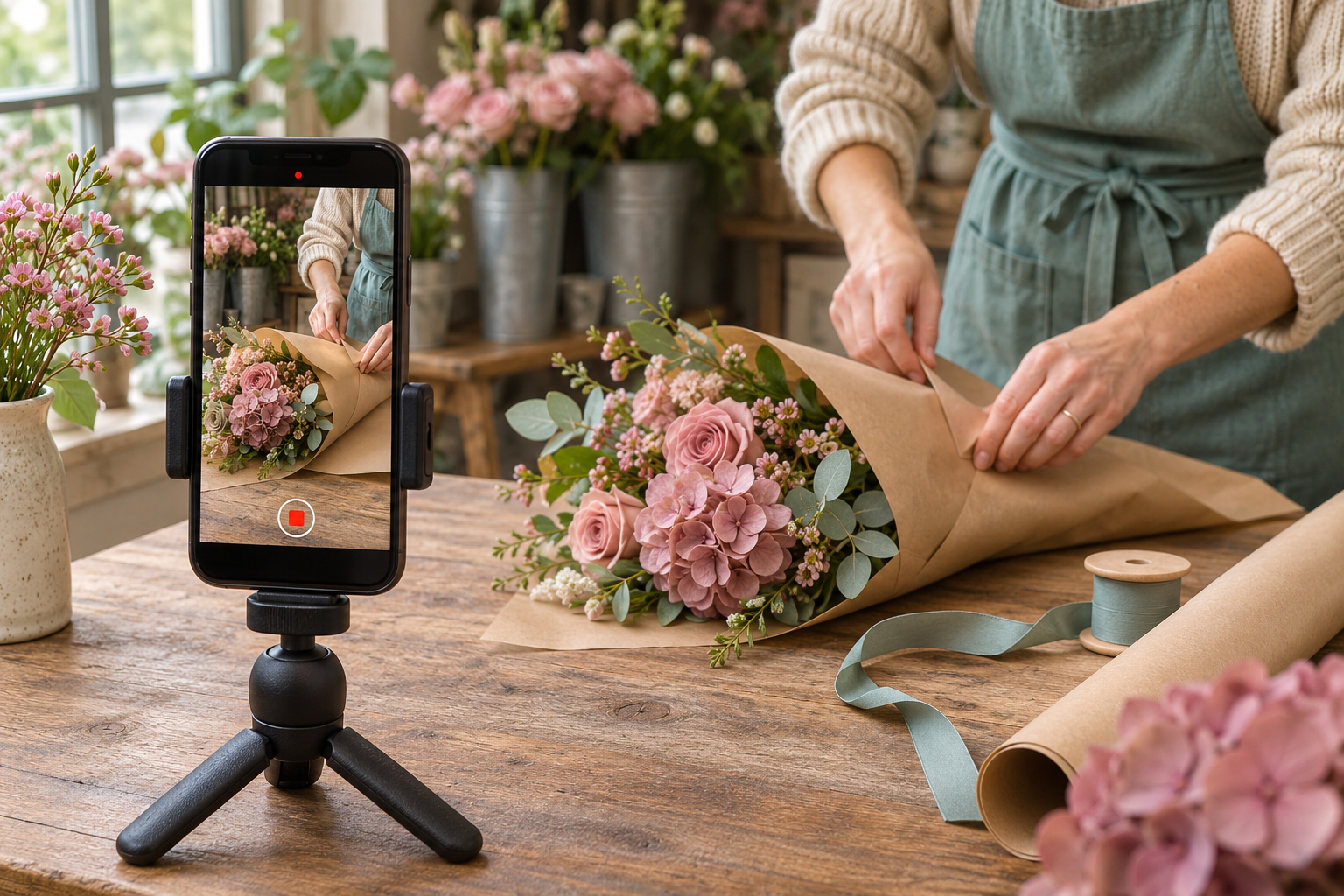
How to make an Instagram Reel for your small business
If you’ve thought about venturing onto social media with your business but don’t even know where to start, you’re not alone. An Instagram Reel can be a handy way to show potential customers who you are and what you do. But where do you even start?
Instagram Reels have come a long way since they first appeared in 2020. Spend a few minutes scrolling on your phone and you’ll see everything from cooking tutorials and holiday photo dumps to cafes showing their latest bakes and shop owners showing you behind the scenes. They all look fairly professional and straightforward to make until you try making one yourself.
How do you trim the clip? How to you get each shot to change in time to the music? And how do you add that trending song that’s been stuck in your head for days?
The first time you open the Reels editor, there’s a fair bit of tapping around to do to work out what everything does. So we’ve broken it down, from filming your first clip to adding the finishing touches and posting it. We’ll even show you how to use a template if you’d like a head start.
Why should small businesses make Instagram Reels?
As with anything, the age old question is ‘why should I bother?’ The reason you should bother is creating a presence on social media can help you to drive more customers online or get more local people to come and visit you. Reels are a great way to vary the content on your channels and create engaging and interesting content to draw potential customers in.
As a starter, think about the things you’d show someone if they walked into your shop or asked you about your work. A florist could show how a bouquet comes together. A bike show could show exactly what happens during a service. A café could show what goes into their most popular sandwich. A short video can answer the sorts of questions that are too long winded to explain in a caption, such as how big something is, how it works or what happens when you book.
Instagram can also recommend Reels from public accounts to people who don’t already follow them. That gives your potential customers another way to discover your business. If you sell locally, give customers a detail they can act on, such as where to find your shop or when they can collect an order.
If you’re wondering where to even start, think of a question you answered for a customer this week. You can film the answer as you go about your day, with the camera pointed at what you’re doing.
How to make Instagram Reels from scratch
Making a Reel from scratch gives you control over which clips you use, how long they stay on screen and when the text and audio come in. For your first one, try just putting three short clips together. This will give you a good feel for how the editor works without turning it into a job that takes all afternoon for a ten second clip.
1.Open the Reels editor
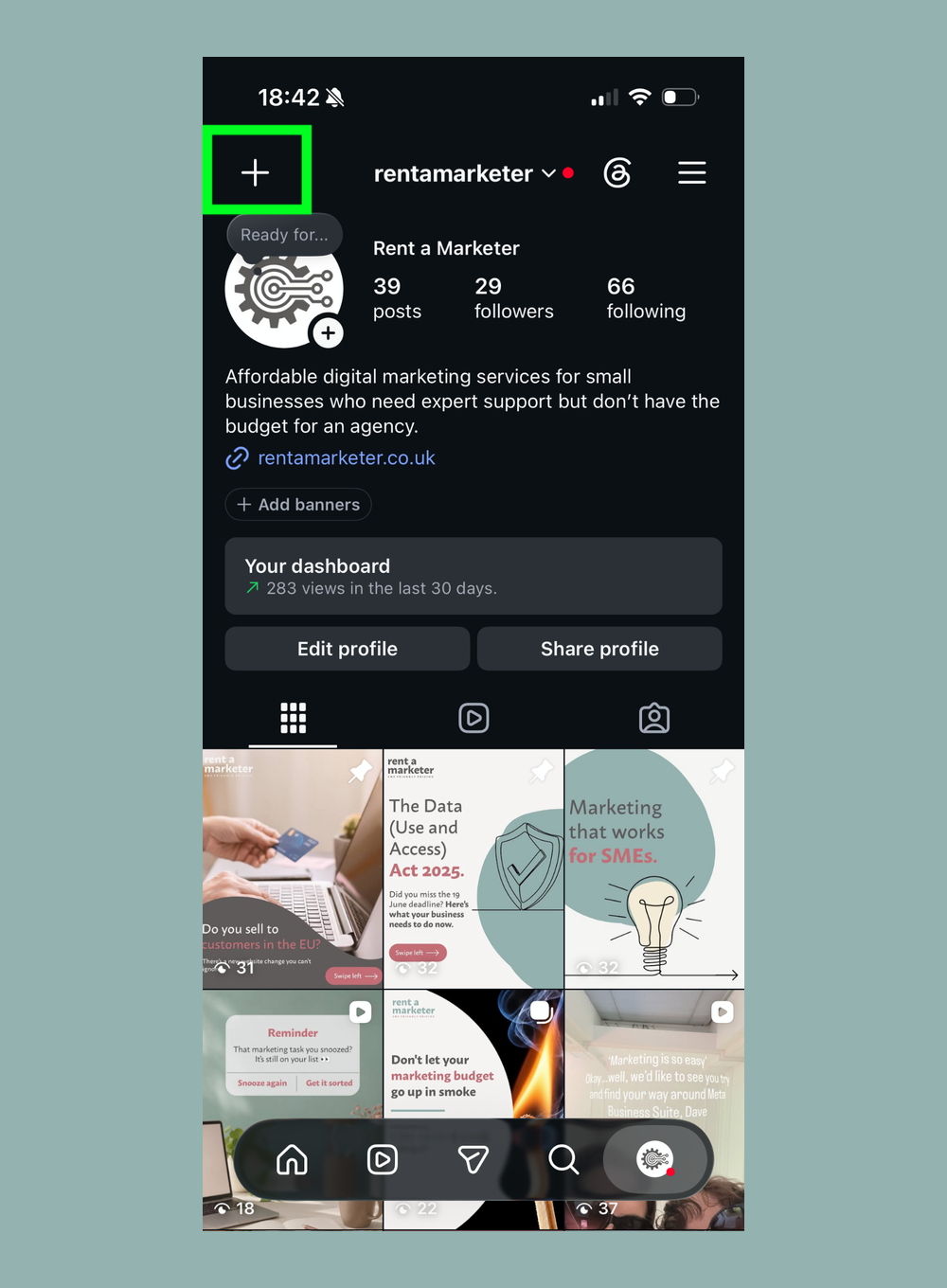
In the Instagram app, tap ‘Create (+)’ and select ‘Reel’.
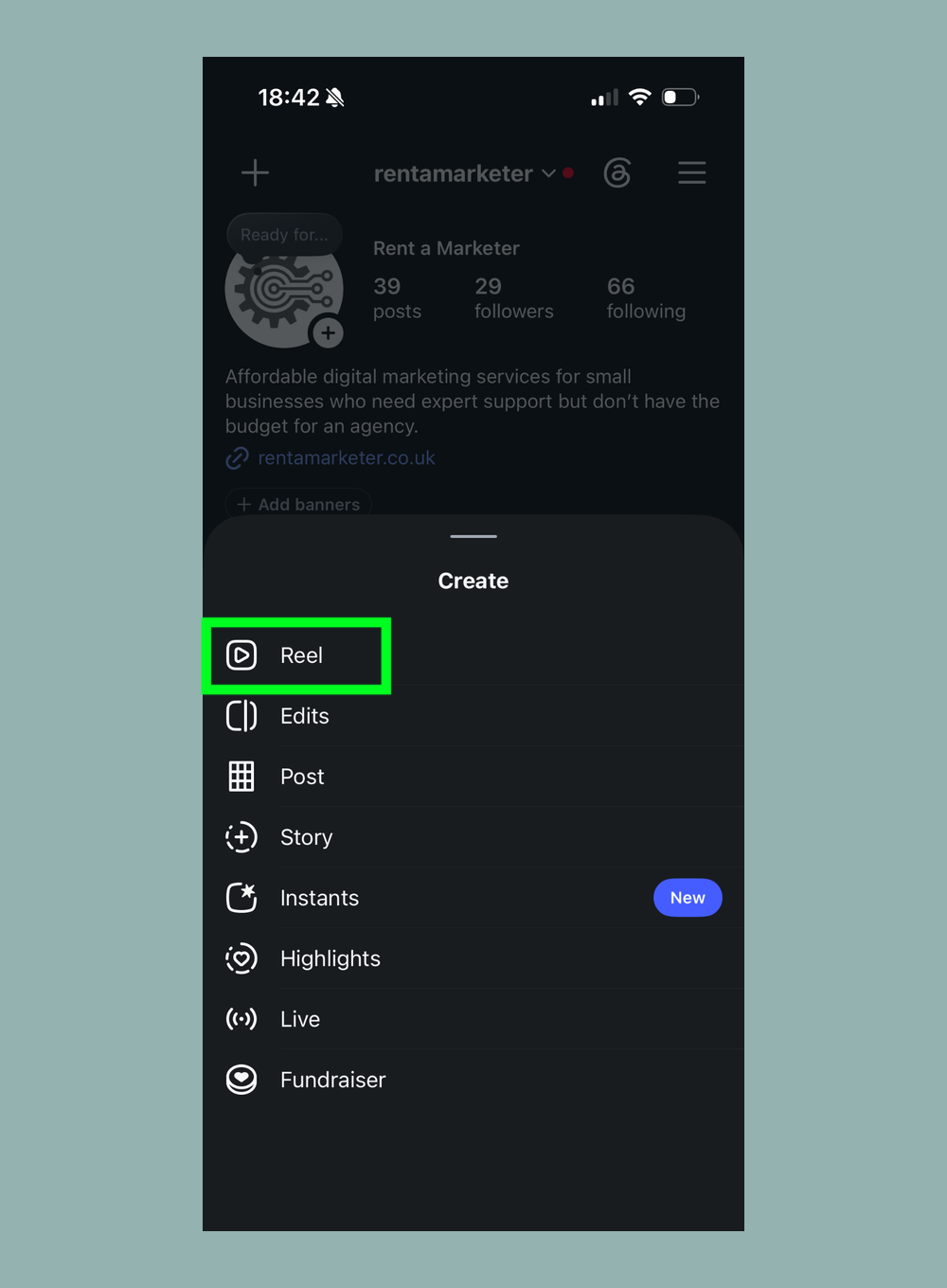
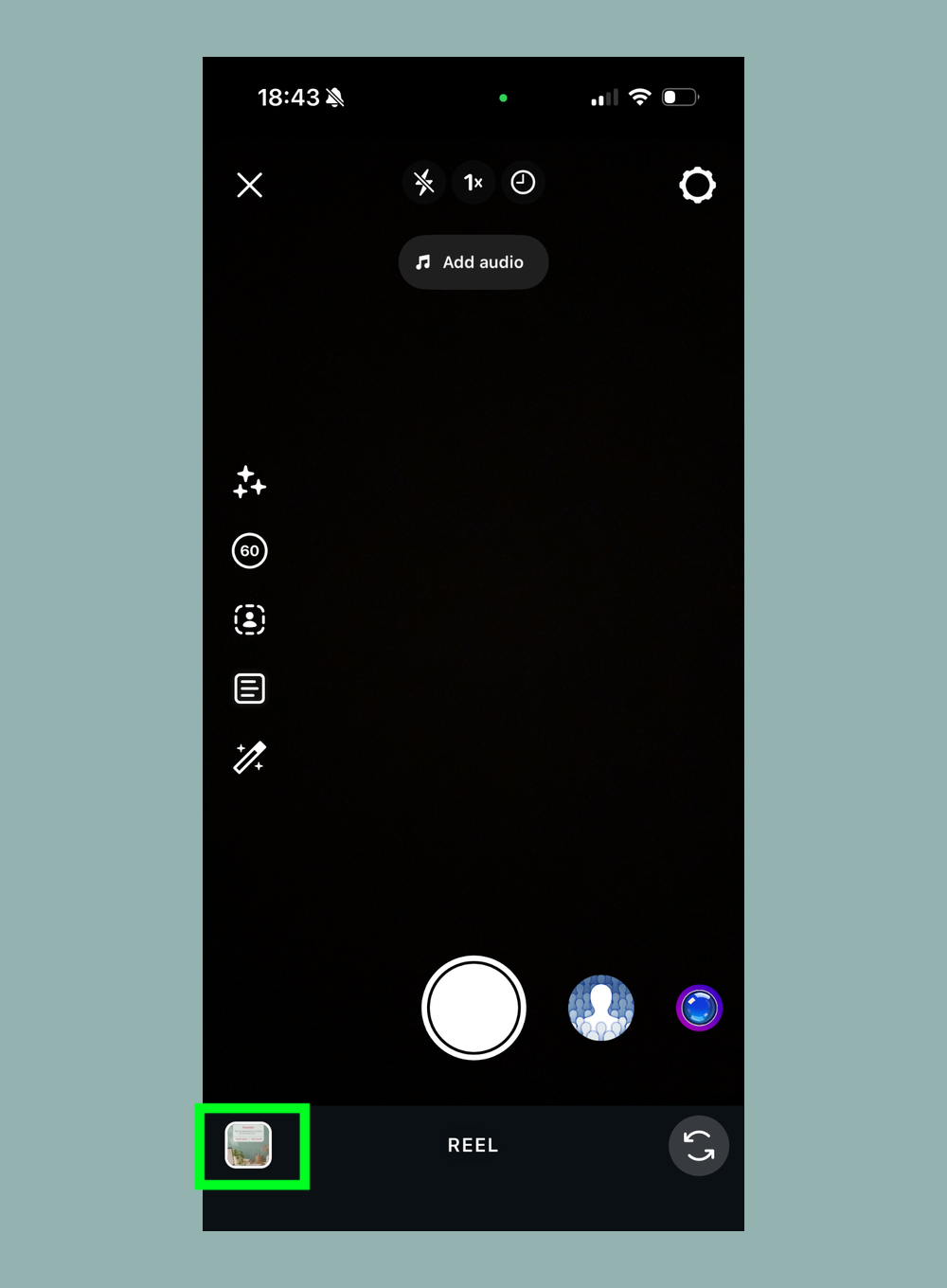
From there, you can record straight into Instagram or choose photos and videos from your phone’s camera roll. The exact position of the controls can vary, so look out for the camera roll thumbnail if you’ve already filmed the footage you want to use.
2.Record or upload your clips
If you’re filming in Instagram, use the round record button. You can shoot one continuous clip or stop and start to build up a Reel from a few shorter snippers. The progress indicator around the record button helps you see how much you’ve filmed.
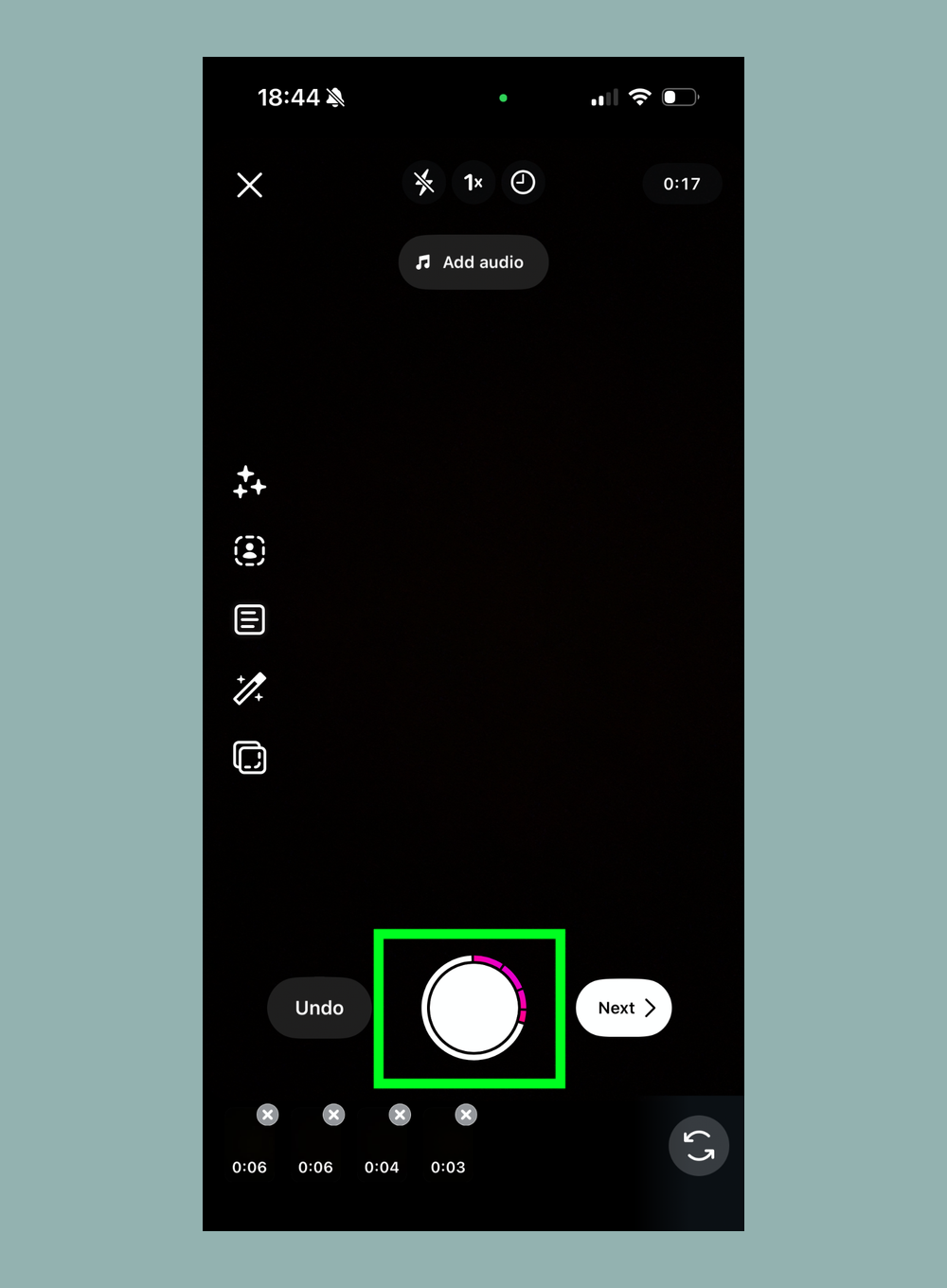
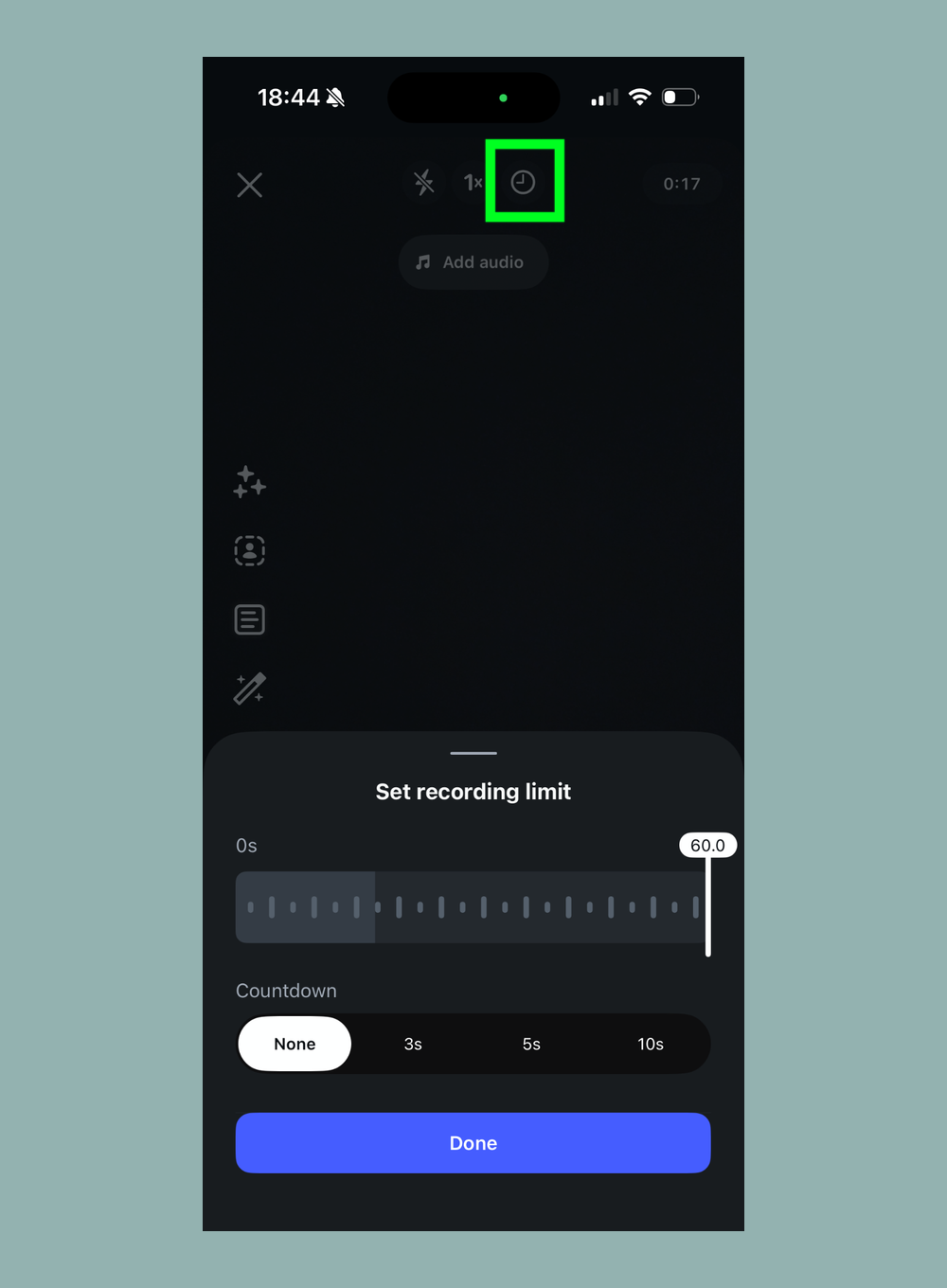
If you need to use both hands in the shot, look for the timer so you can prop your phone up or put it on a tripod and get into position before it starts recording.
For example, if you were filming a florist’s Reel about how to wrap a bouquet, you’d start with a shot of the finished bunch, then film the flowers being gathers and the paper folded around them. You can record each step separately and put the clips in order afterwards. You can also choose whether to have a whole person in the shot or just the hands doing the work. Hold your phone vertically and leave a little space around the scene you’re filming if you’re planning to add text later.
3.Trim and rearrange your clips
Once you’ve recorded or uploaded your footage, tap ‘Next’ and open the clip editor.
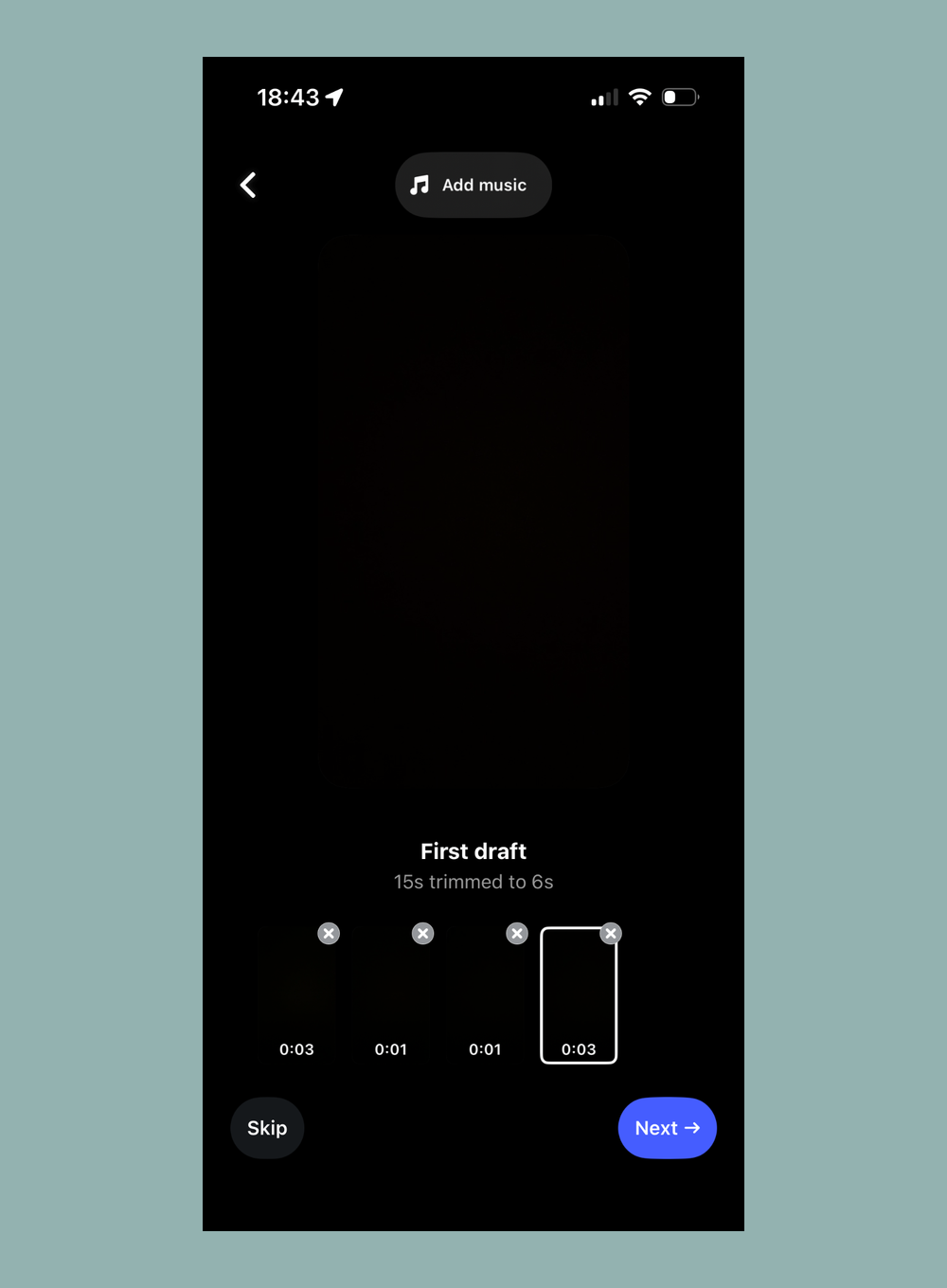
Trim the bits where you’re reaching for the phone or waiting for something to happen. You can also rearrange your clips, add another one from your library or adjust the speed to make the video a bit snappier. A sped-up shot might work for wrapping the bouquet, while a close-up of how you tie the ribbon is worth giving people time to watch.
4.Add text and decide when it appears
This bit can take a little bit of fiddling around the get right the first time you do it. Add your text, then select it in the editing timeline. Adjust the start and end points so it appears over the clip you want. In our example for the bouquet, you might write ‘How we wrap your flowers’ over the opening shot and ‘Ready for collection’ over the finished bunch. Play the Reel back to check you’ve left each line of text on screen long enough to read.
If you’re speaking in the video, add subtitles and reach them back before sharing. Automatic captions can make surprisingly creative attempts at business names or local place names!
5.Write a caption, choose a cover and share
Once you’re happy with your edited video tap ‘Next’. On the sharing screen, you can add a caption, tag people or businesses where relevant, add a location and choose a cover.
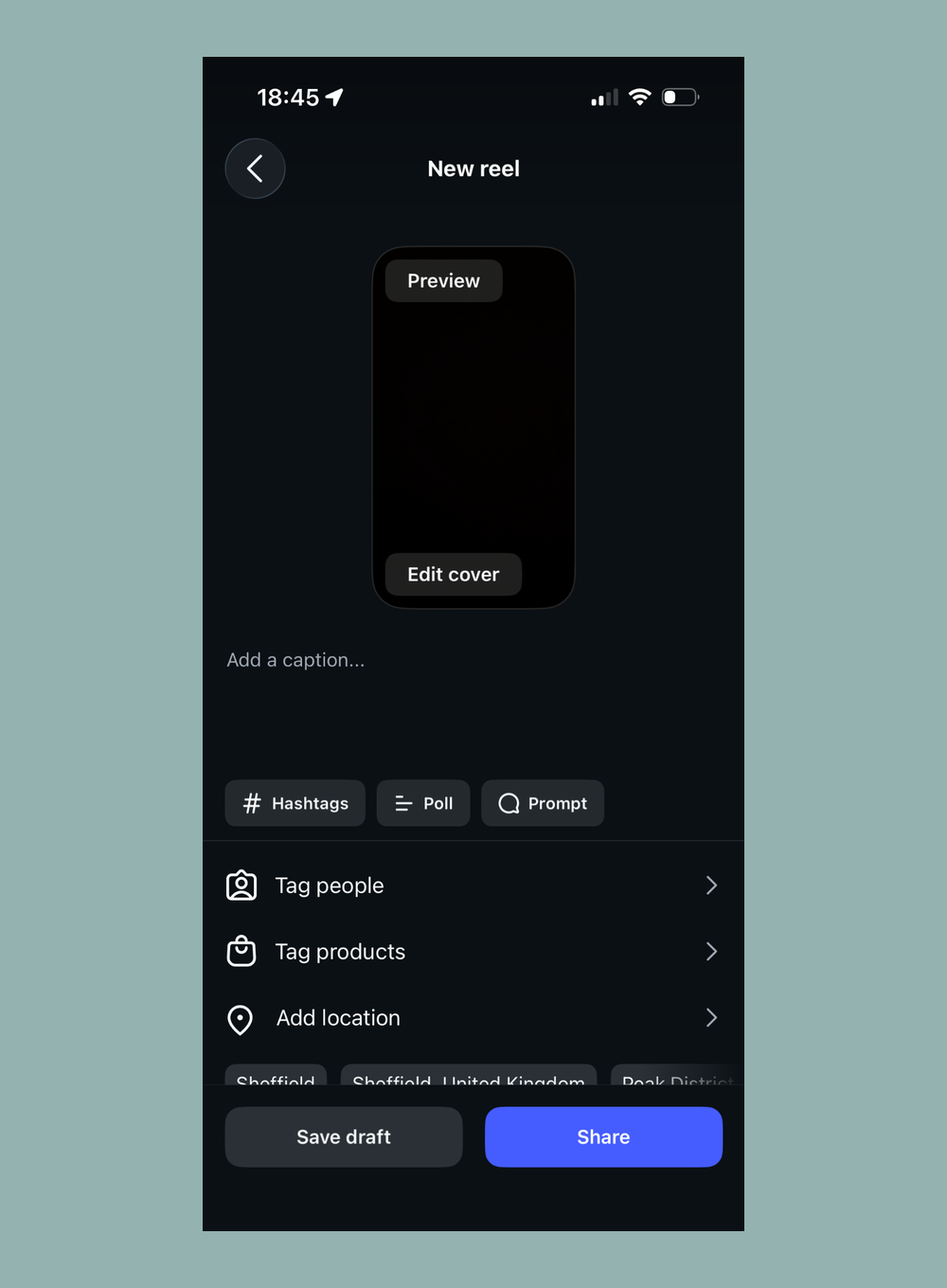
The cover is the still image people see when they’re scrolling through your profile so pick a frame that tells them what the Reel is about. Check the preview if you’ve put text on the cover, as it may crop differently on your grid. Then share it or save it as a draft.
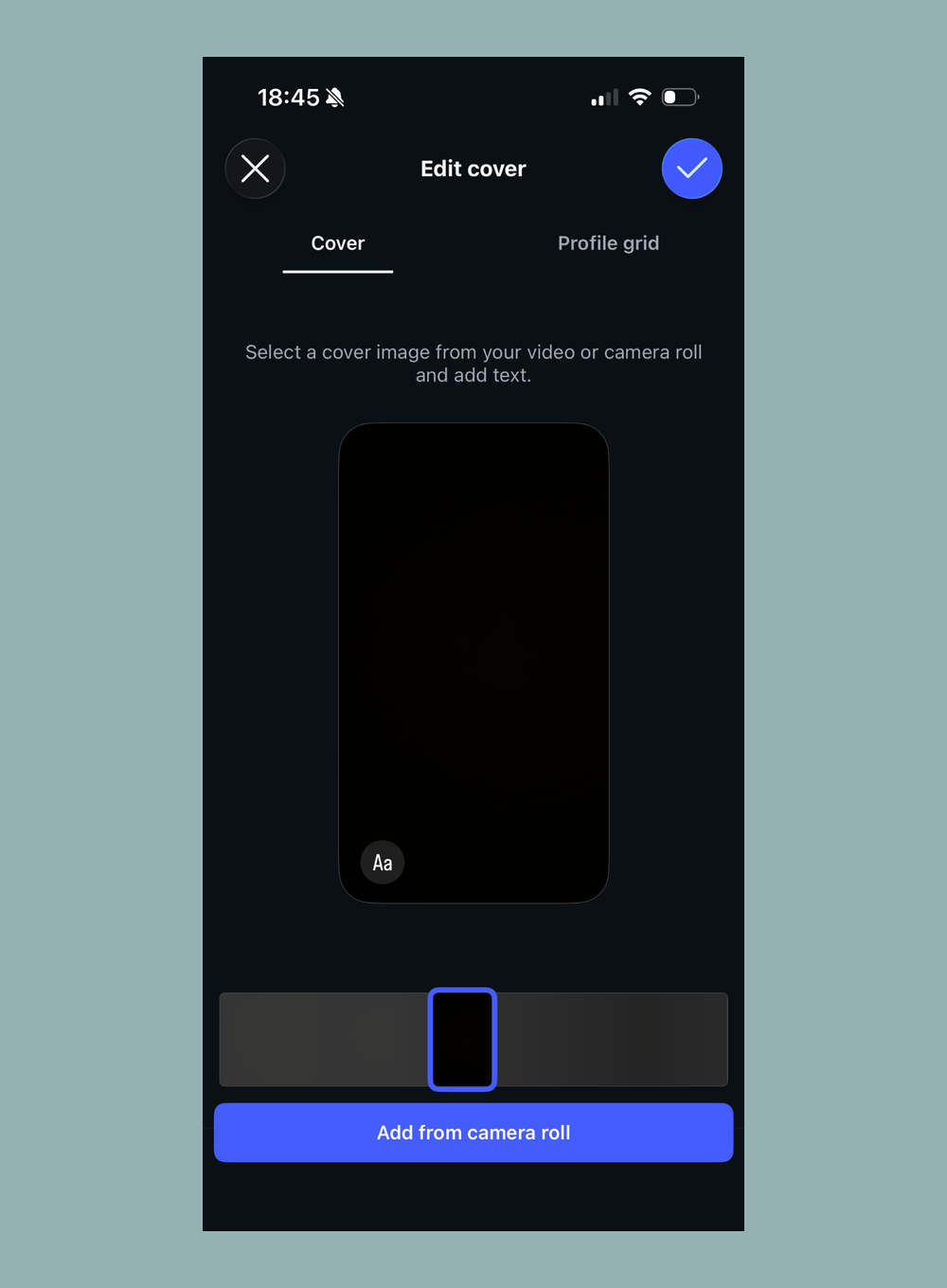
Use the caption for details that would be difficult to squeeze into the video. For example, if you’ve filmed a Reel around putting a Mother’s Day bouquet together, the caption could tell customers when orders close and when they can collect it.
How to make Instagram Reels using templates
A Reel template gives you a series of timed slots for your photos or clips. Look for ‘Templates’ when creating a Reel, or ‘Use Template’ when you see a Reel that offers it.
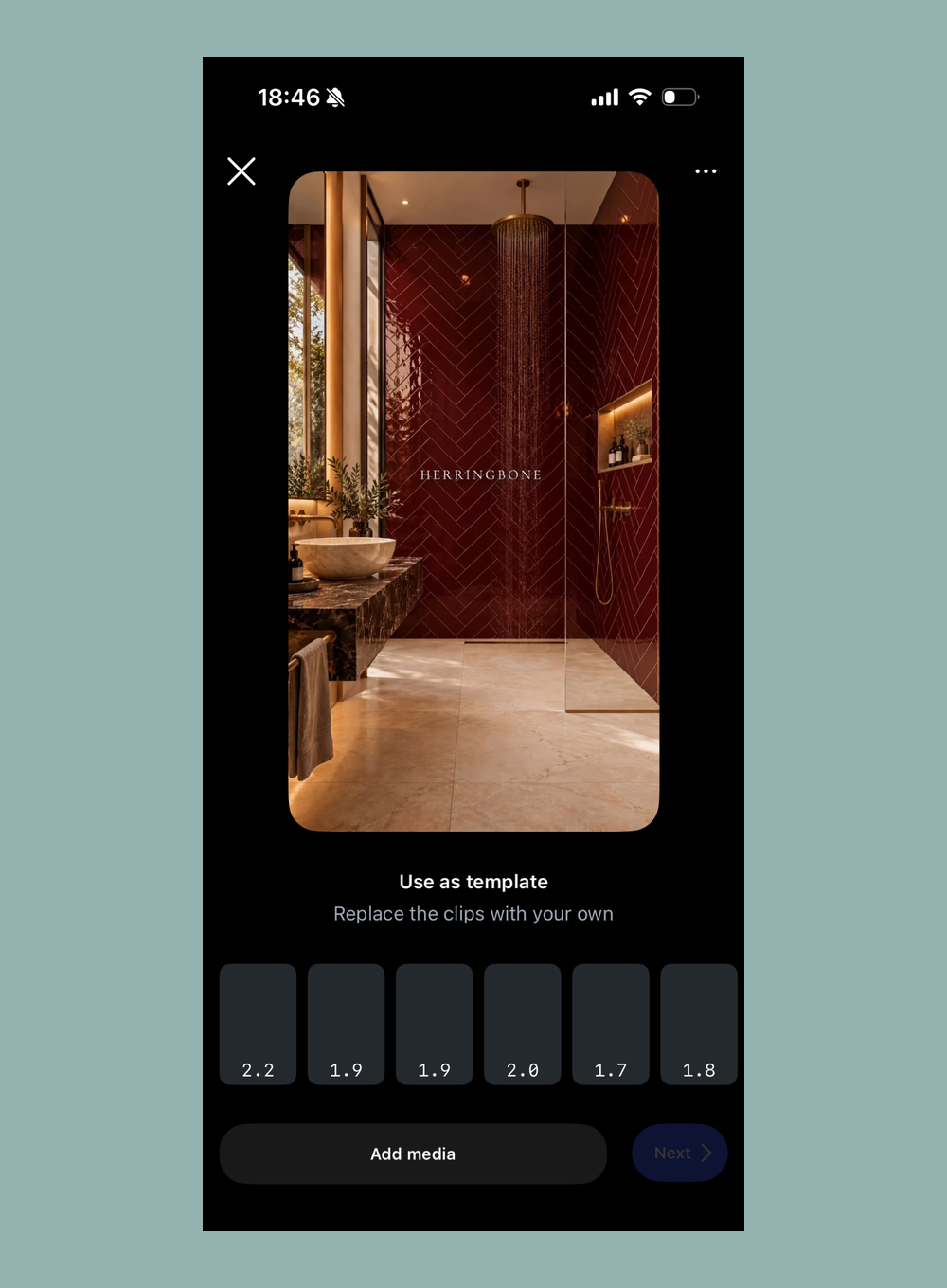
Choose a layout, add your own footage and preview the way the clips fit together. Templates work well for a quick product reveal or a before and after video.
How to add music or audio to your Reel
In the Reel editor, use the audio controls to add a track or record a voiceover.
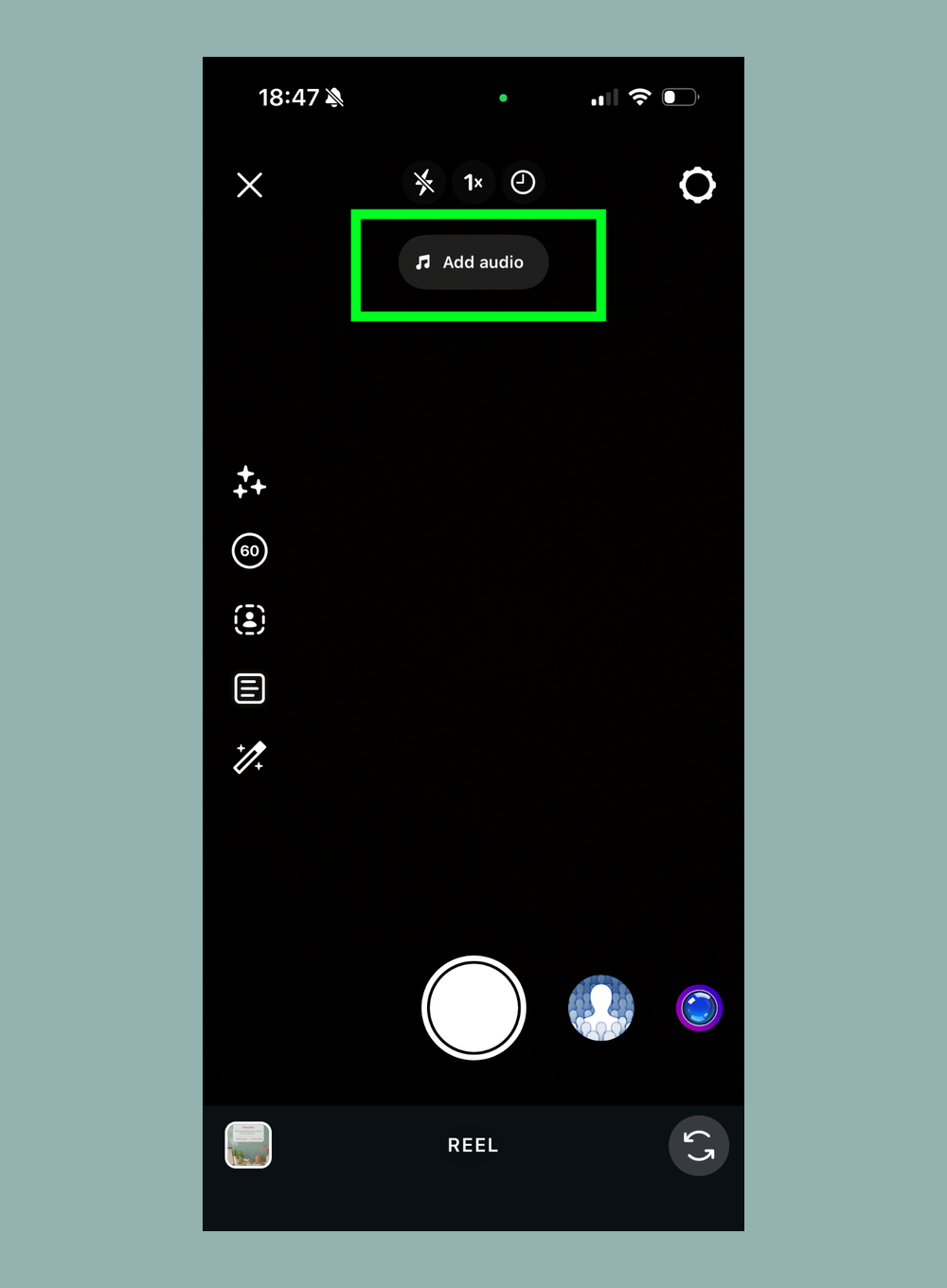
If there’s a particular beat you want to use, pick that part of the track and use the editing timeline to line your clip changes up with it. If you come across an audio track you’d like to revisit, look for the save option on the audio page. You’ll then be able to find it under saved audio when you’re editing a Reel.
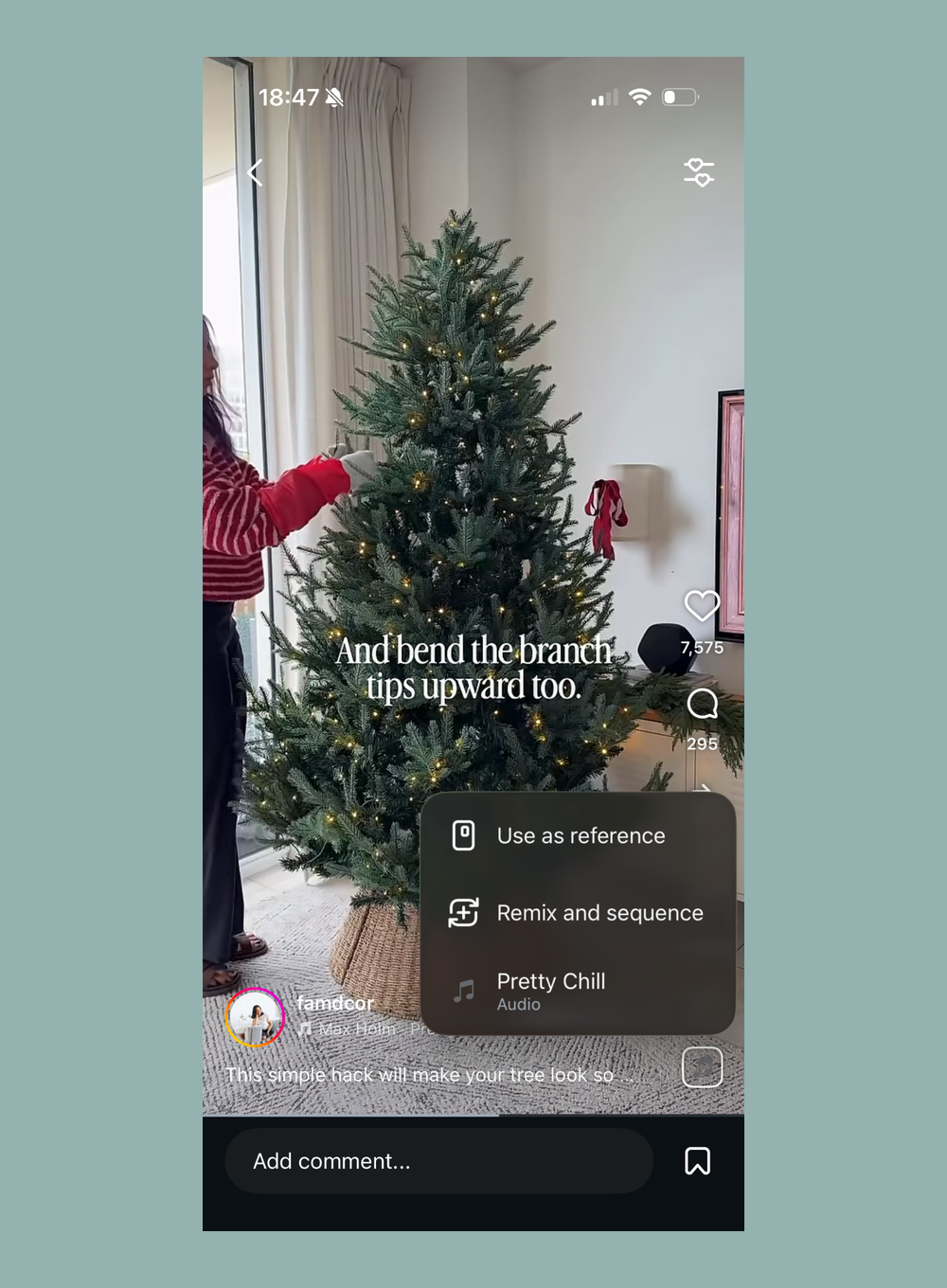
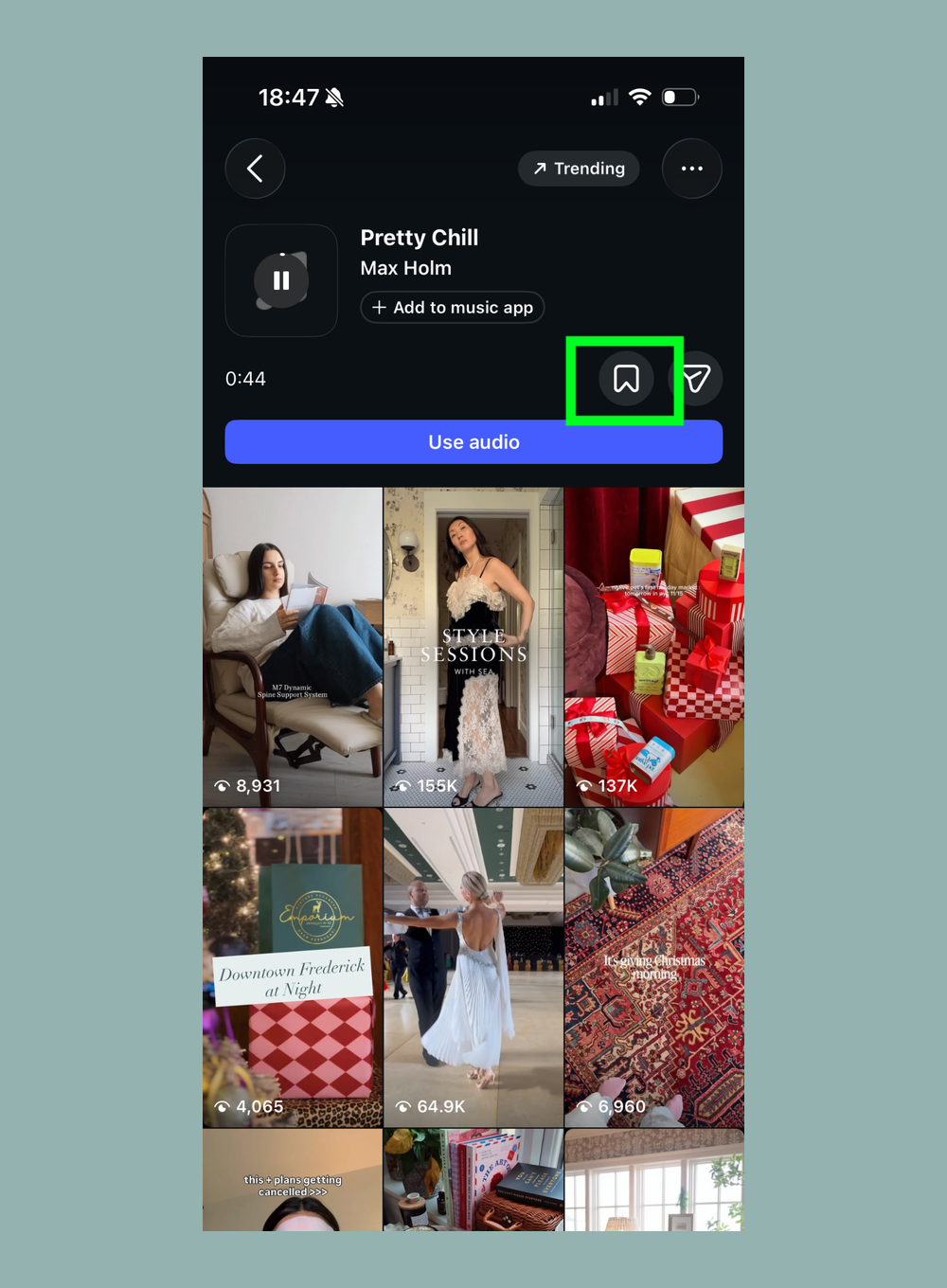
You can also keep the sound from your recording. The hiss of a coffee machine or the crunch of paper as you wrap an order might be all the audio the video needs. If you want to explain what you’re doing, record a voiceover after editing. Then you can concentrate on filming first and then then work out what to say once you can see how the Reel flows.
Five Instagram Reel ideas for your small business
1.Answer a common customer question: A florist shows how to trim bouquet stems and explains when to change the water in the vase.
2.Show your product in use: A ceramics shop pours coffee into a new mug so viewers can see the size, handle and finish.
3.Take people behind the scenes: A bakery films a tray of pastries going from the oven to the counter before opening.
4.Show a before and after: A furniture restorer shows a scratched table, a clip of the sanding and the finished surface.
5.Show what happens when someone books: A dog groomer walks viewers through where to drop off their dog and what to bring to the first appointment.
Start with something you already do
If you’re stuck for ideas on where to start with creating social media content for your business, next time you pack an order, finish a job or answer a customer questions, see if you can capture it in a few short clips. Once you’ve posted a few Reels, have a look at the engagement you’re generating. A video that’s watched many times and leads to a booking gives you a good reason to make another one on a related topic.
Need a hand with Instagram for your small business?
If you’ve got plenty to show customers but you struggle to find the time to plan, film and post it, Rent a Marketer can help. We can work with you to generate content ideas and help you build a social media plan you can keep up with through our Social Media Support services. Talk to our experts to find out more.